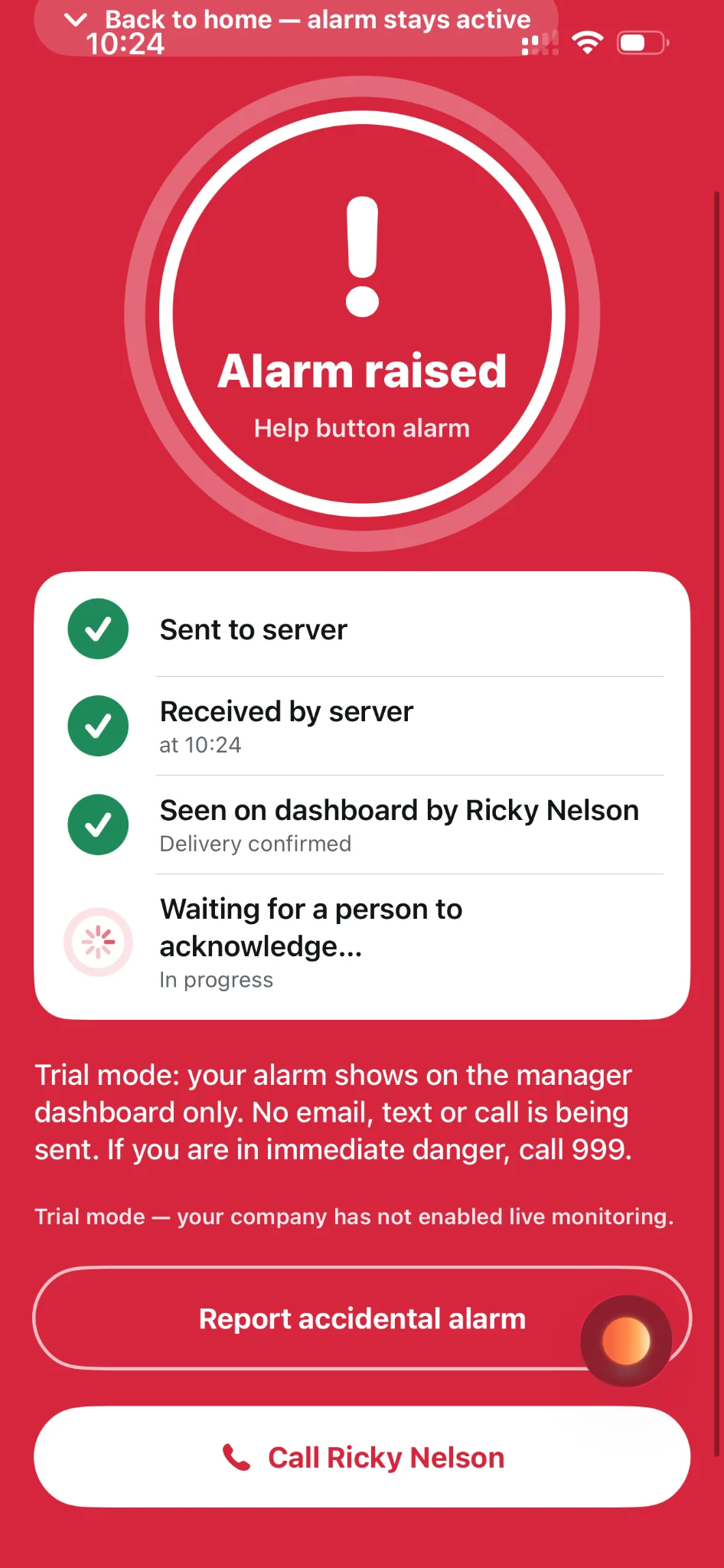
For the worker
Follow the alarm’s progress and see whether a responder has acknowledged it.

THE ALARM JOURNEY
Simple for workers. Clear for managers. LoneApp brings the worker’s experience and the manager’s response together in one straightforward workflow.
Example screensIllustrative screens using a demonstration account. Your team’s settings may differ.
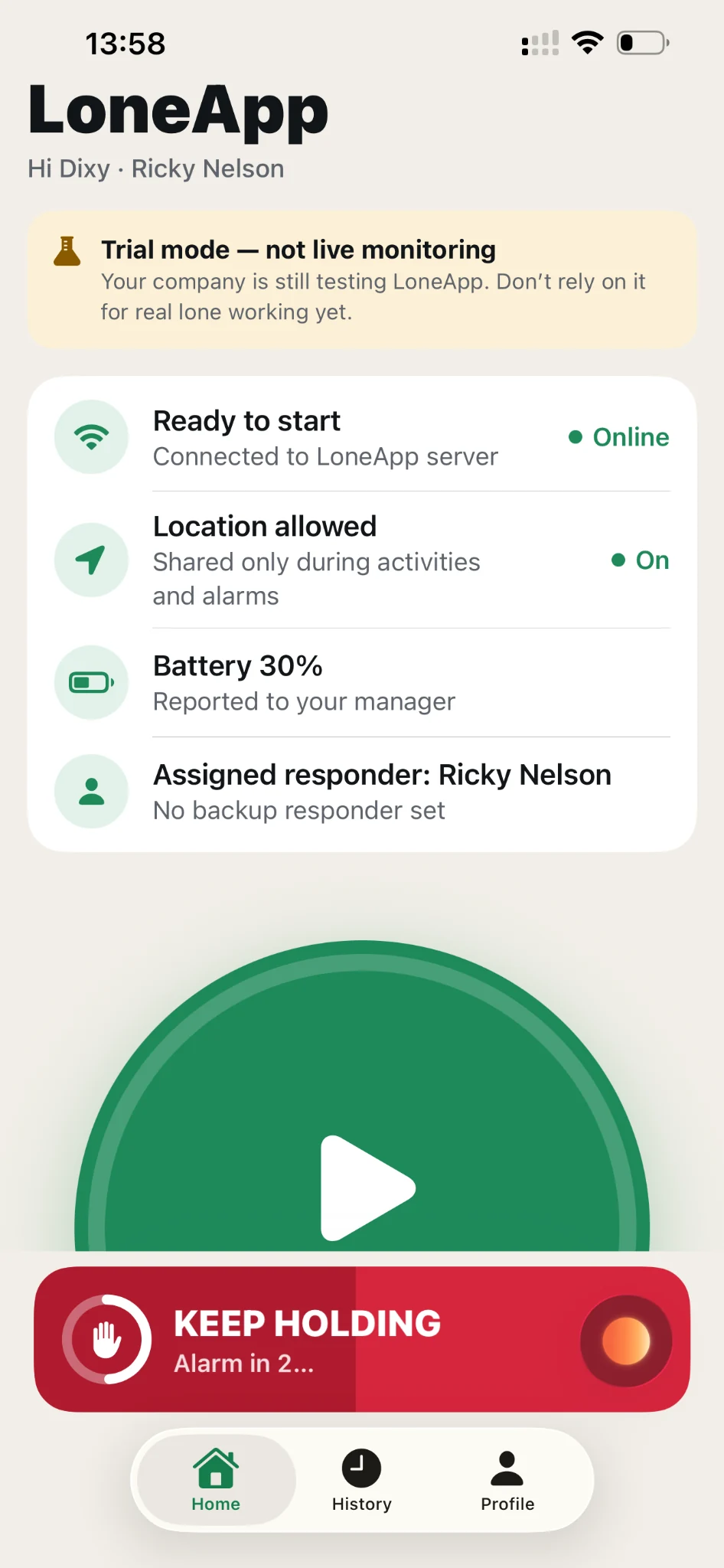
01 THE WORKER ASKS FOR HELP
Press and hold HELP for three seconds to raise an alarm. The countdown shows your progress and helps reduce accidental activation.
The screen shown here captures the hold in progress. After the hold completes, the app moves to the alarm view.
02 / ONE ALARM, TWO VIEWS
Server receipt, dashboard delivery and human acknowledgement are different stages. LoneApp keeps them visible without implying that assistance has already arrived.
Follow the alarm’s progress and see whether a responder has acknowledged it.
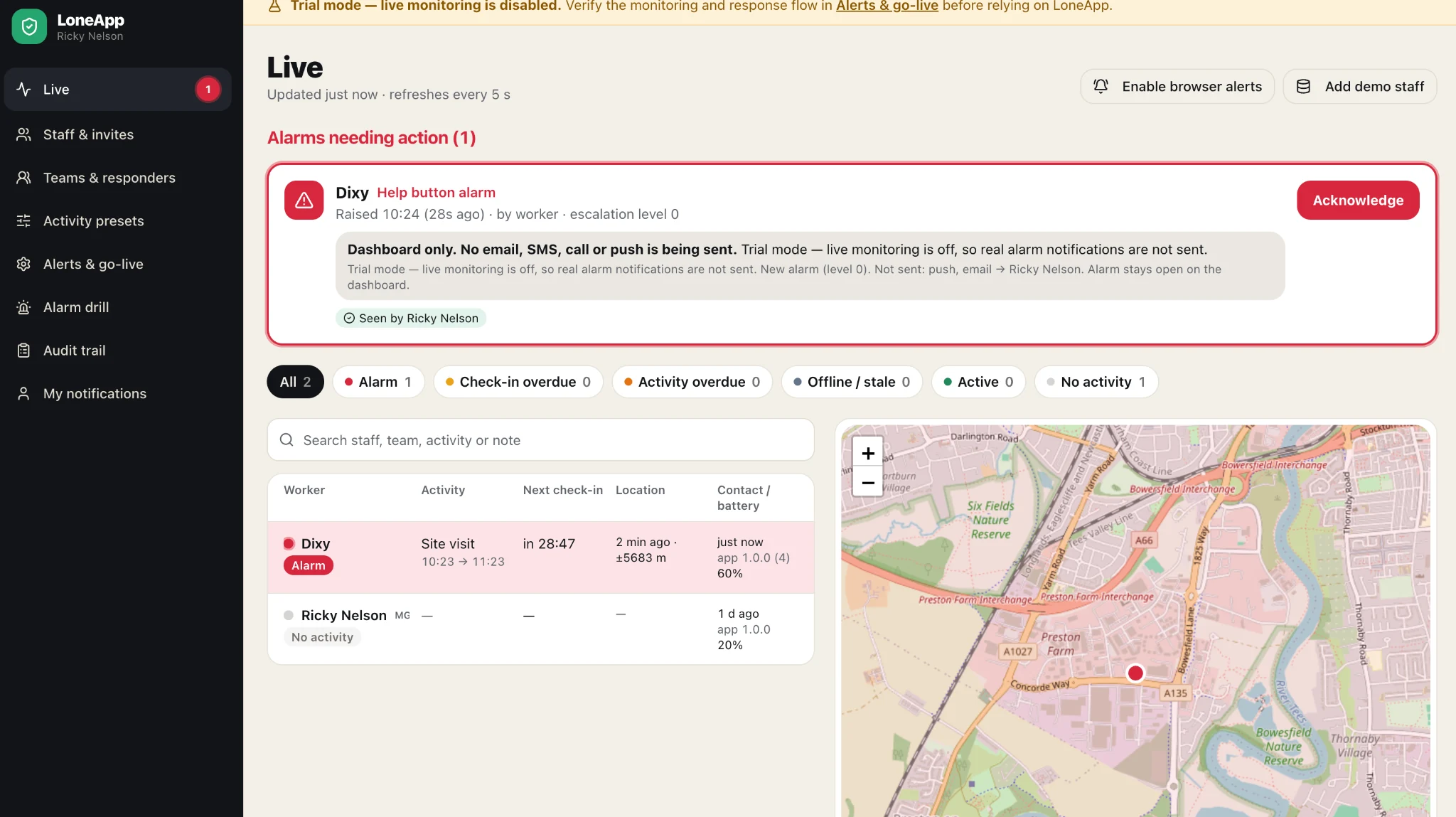
See who needs attention, what triggered the alarm and when it was raised. Acknowledge it, then follow your organisation’s response procedure.
Acknowledgement records that a person is responding. It does not confirm that the incident is resolved.
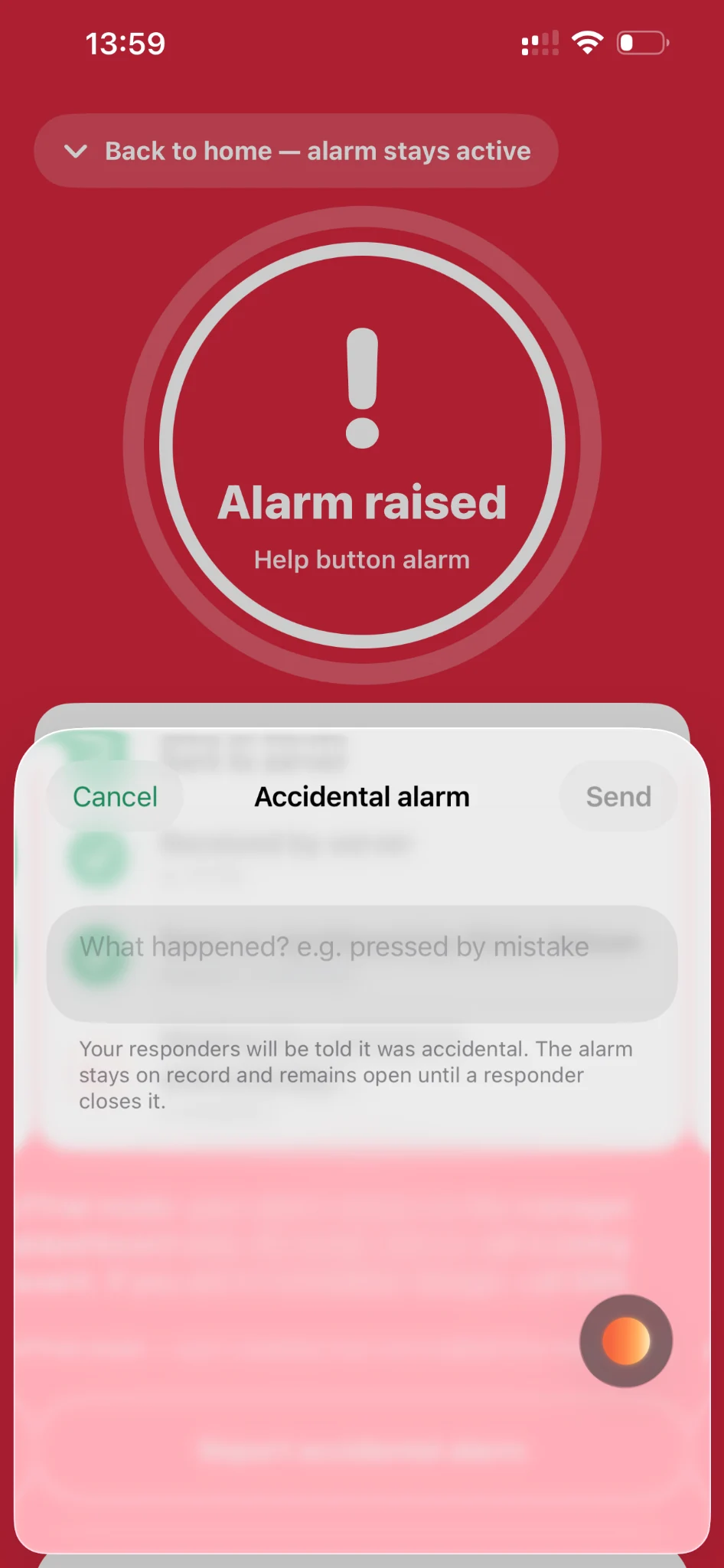
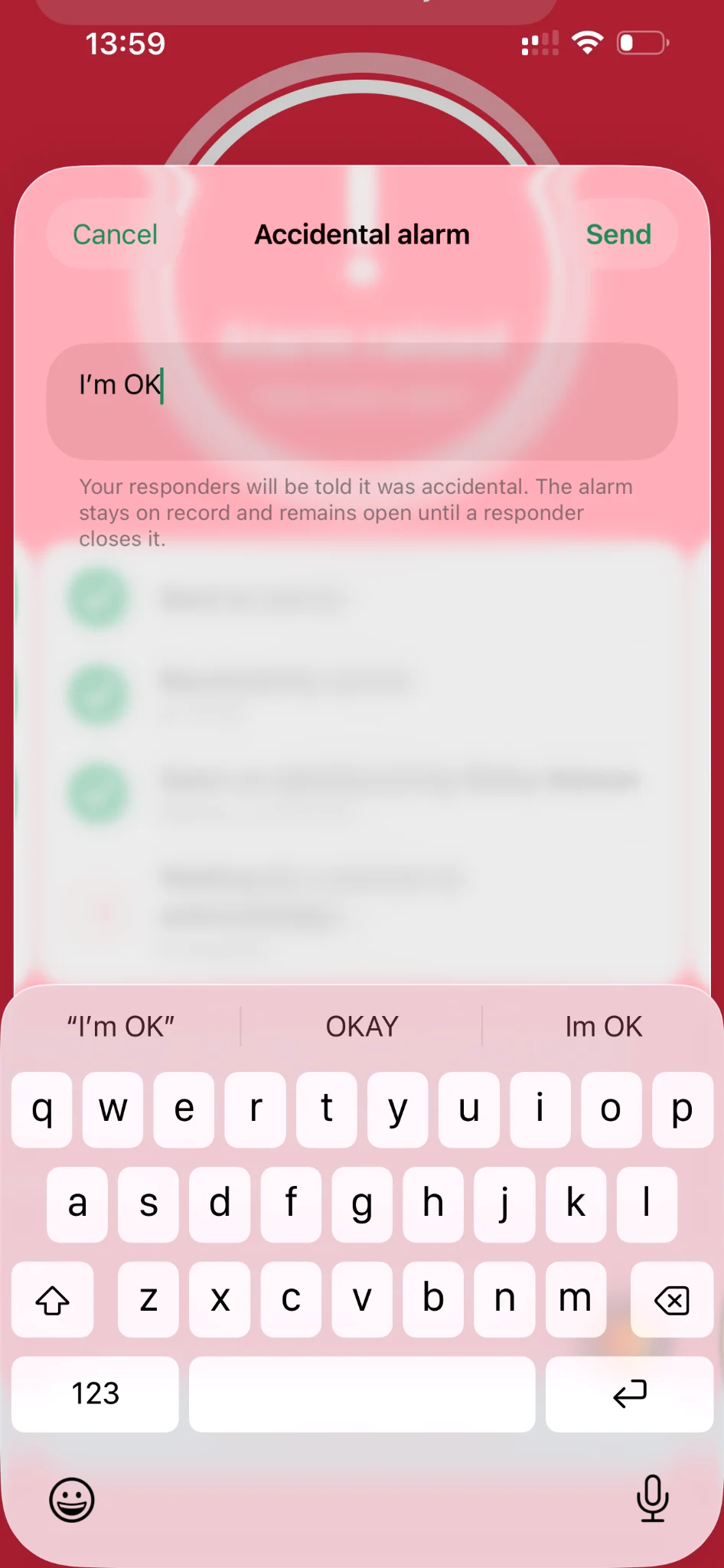
03 IF IT WAS ACCIDENTAL
If an alarm was raised accidentally, the worker can send an “I’m OK” message with an explanation. The alarm remains open until a responder closes it, keeping the worker’s update and the manager’s decision on record.
04 / RECORD THE RESPONSE
The responder chooses the outcome and records what was done. This helps distinguish incidents and review how they were handled.
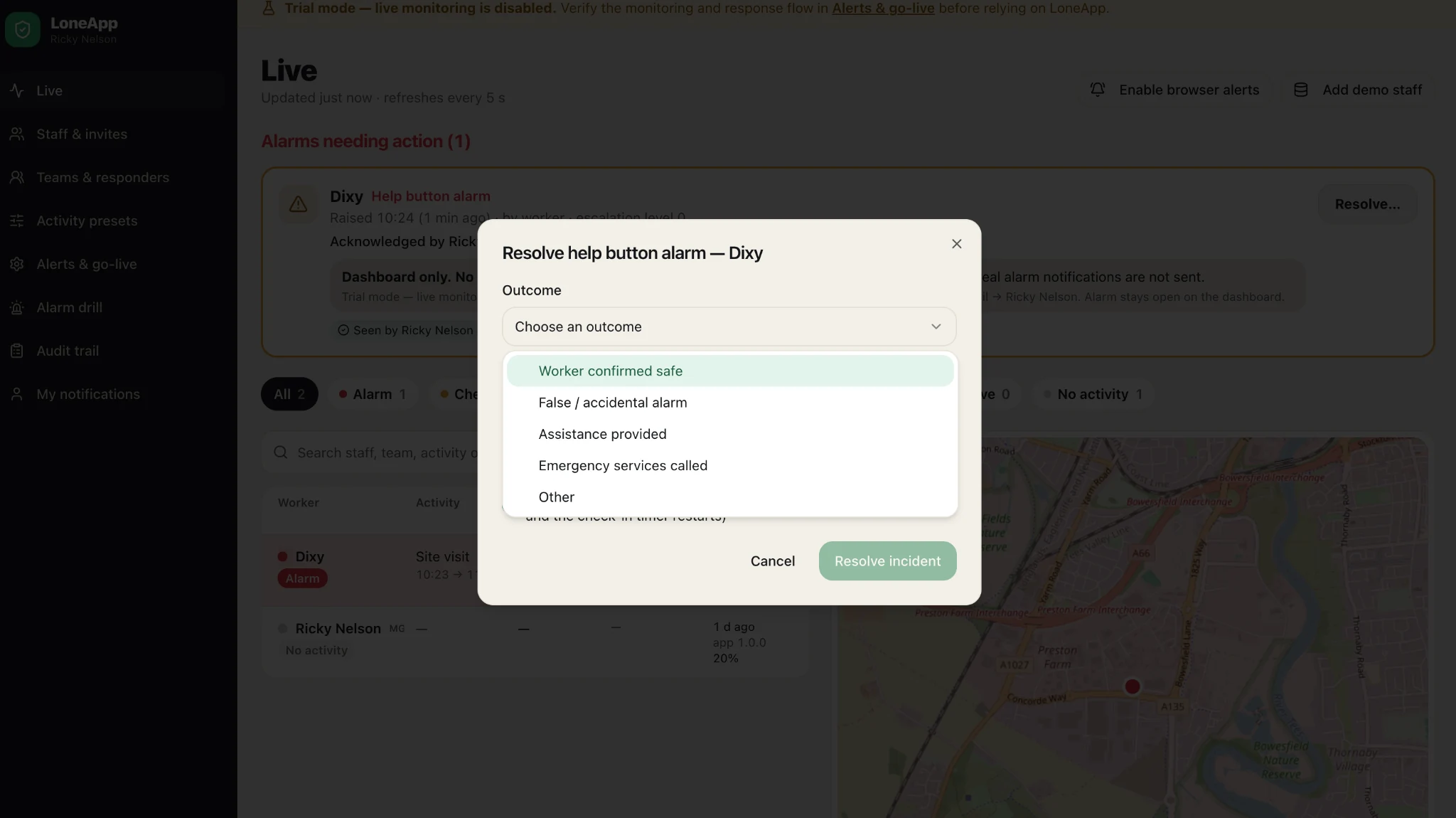
Choose an outcome that reflects what happened, such as the worker being confirmed safe, assistance being provided or an accidental activation.
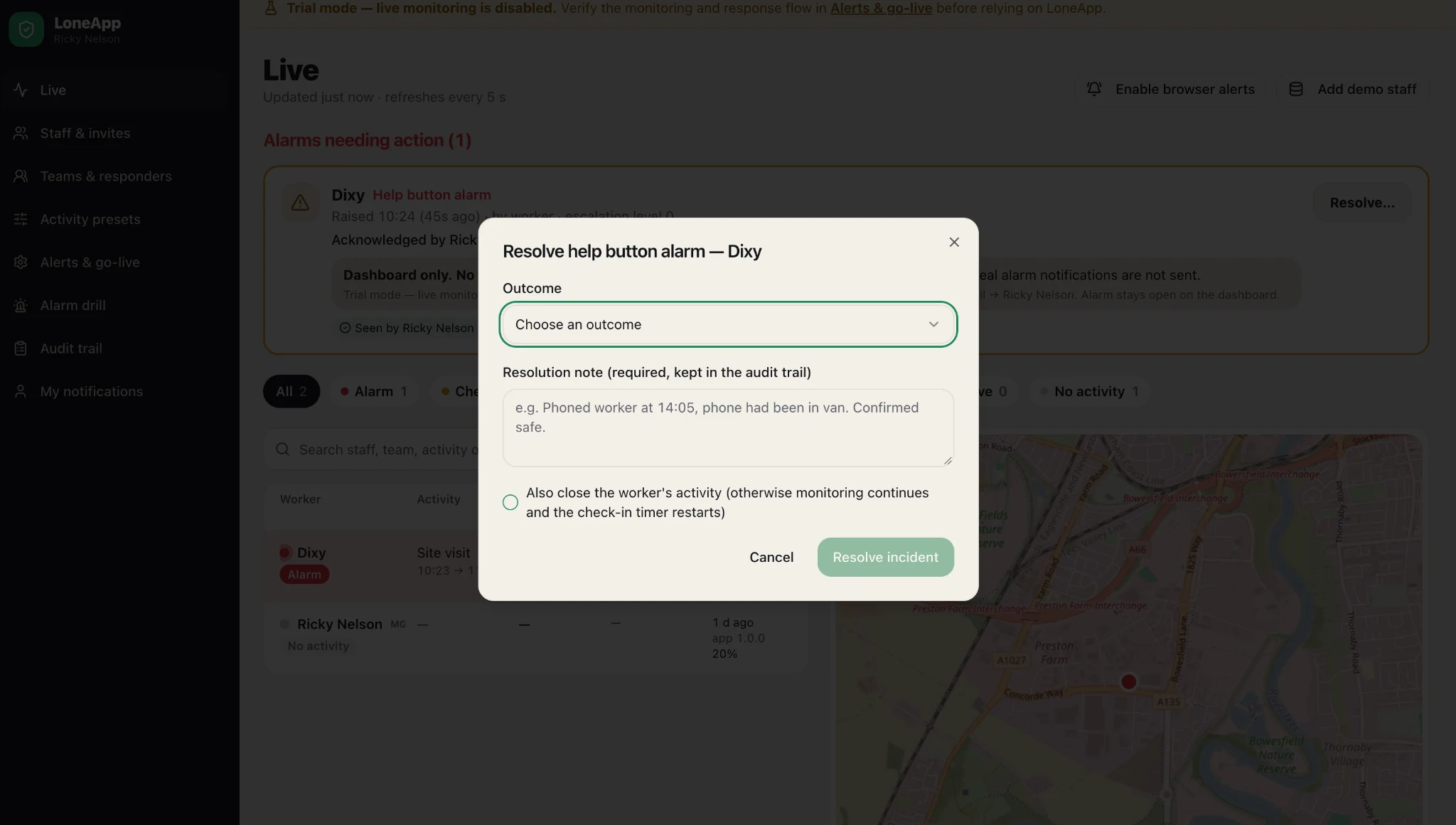
Add a resolution note explaining the action taken and the outcome. The responder can also choose whether to close the worker’s activity, keeping that decision separate from closing the alarm.
05 COMPLETE THE COMMUNICATION LOOP
The worker can see who acknowledged the alarm, who resolved it and the resolution message. This completes the communication loop and provides a clear record of the response.
The green resolved screen marks the responder’s closure of the alarm. The record shows the key stages and the explanation supplied.
Explore response records for managers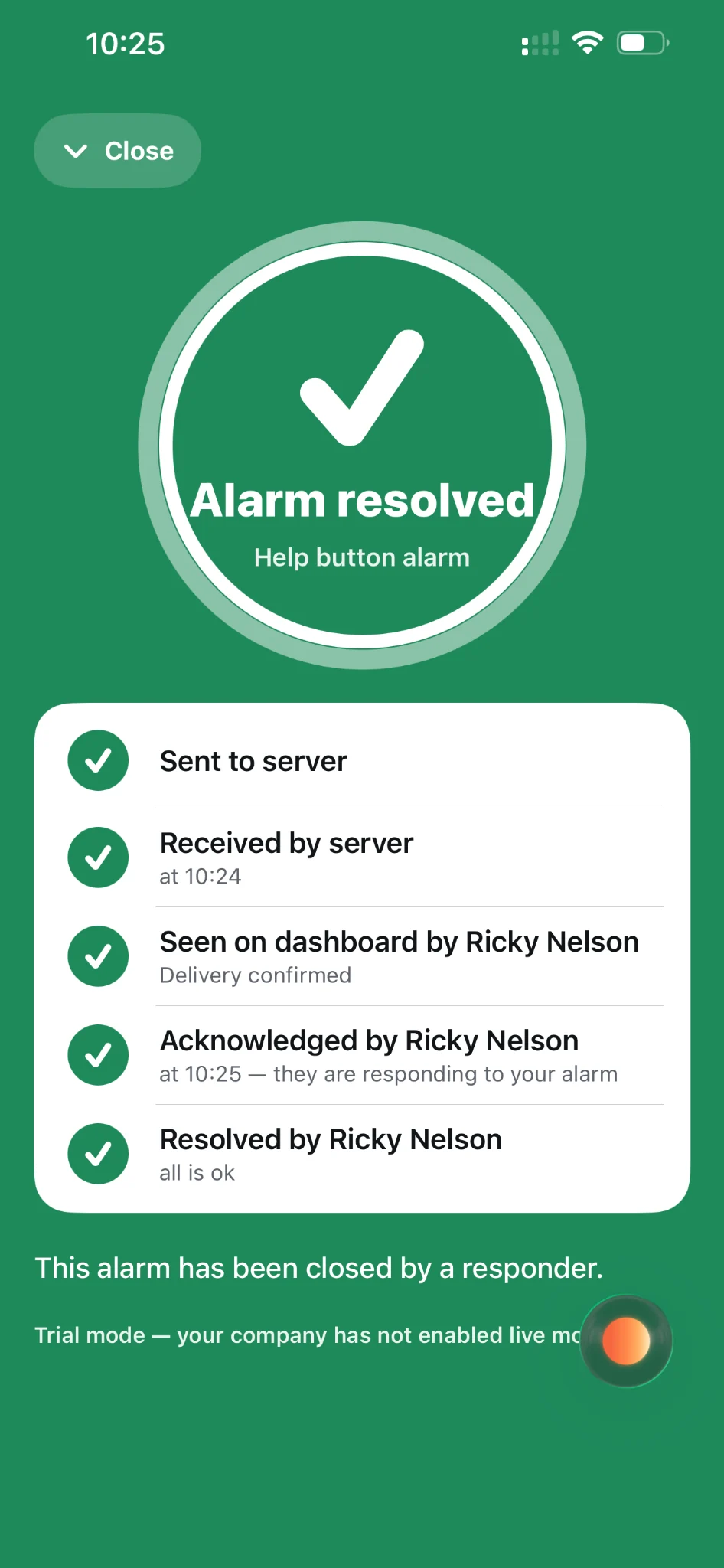
GET STARTED WITH LONEAPP
Your company manages the seats. Staff use the free worker app.